
Stop opening Outlook just to check your calendar
Away from work, I am a Mac and iPad user. If I want to check my calendar, I open a calendar app. If I want to check my email, I open an email app.
At work though, I’m locked into the standard PC-based, Microsoft environment. So if I only want to see my calendar, I have to open Microsoft Outlook and that runs the risk of me seeing (and subsequently getting distracted by) my email inbox.
In this blog post I show a solution that I came up with to let me easily see just my Outlook calendar without being distracted by my Outlook inbox.
Away from work, I am a Mac and iPad user. If I want to check my calendar, I open a calendar app. If I want to check my email, I open an email app.
At work though, I’m locked into the standard PC-based, Microsoft environment. My employer expects me to use all of the standard Windows 11 apps. So that’s Microsoft Edge for web browsing, Microsoft To Do for creating to do lists, Microsoft OneNote for taking notes etc.
So this is the problem: if I only want to see my calendar, I have to open Microsoft Outlook and that comes with the heavy baggage of also being my email client. This means that my intention to just check what my day or week is going to look like runs the risk of me seeing my email inbox.
Why is having one app for emails and calendars a bad thing?
Even the strongest-willed among us will know the feeling of getting sucked into dealing with emails that are sitting in your inbox just because they are there, They tease and taunt us…pulling us in like sirens luring sailors to their death.
You may intend to only open your calendar app but because Microsoft have made that go hand-in-hand with your emails, you might find yourself diverted into reading that new email from your boss, and then that email from a colleague that you were waiting on…and 30 minutes later you realise that you haven’t yet looked at your calendar.
Distractions like this create something called ‘attention residue’. This is a phrase coined by researcher Sophie Leroy in a 2009 article on Why is it so hard to do my work? The challenge of attention residue when switching between work tasks.
This article refers to the problems caused by ‘task switching’ where even if you do get back to your calendar app, your mind continues to have traces of focus still lingering on whatever emails you were looking at. Every distraction like this might cost you as much as 23 minutes to gain your focus back.
Microsoft created a solution…and then killed it
For a while, there was a glorious solution to this problem, one that Microsoft itself instigated. Windows 11 includes a ‘Widgets board’ that can display various widgets, including weather, stocks, etc. This can be launched by clicking on the relevant icon in your taskbar, but you can also launch it by simply pressing Windows + W.
I used this extensively, as it let you have a calendar widget and a To Do widget. It was wonderful. A simple keyboard shortcut could quickly let me show (and then hide) what my day was looking like. Microsoft clearly understood the issues of having a combined app for emails and calendar and was doing something about it.
Or at least they only understood it until November 2024, when they removed those widgets from the Widgets board.
Microsoft made something that I actually admired and then pulled it out of my hands. This was maddening, but I would not let it rest.
Building the solution that Microsoft doesn’t want you to have
My own frustration with getting distracted by emails when all I wanted to do was view my calendar led me to create a simple solution. I have a Windows shortcut on my desktop that launches an app view of my Outlook calendar (a single webpage but with no address bar, or bookmarks bar etc), and this is all controlled by a keyboard shortcut.
Here are the step-by-step instructions:
Right-click an empty area of your Windows desktop and choose New → Shortcut
In the Location field box of the resulting pop-up window, add the following (which should work on any corporate Windows setup) "C:\Program Files (x86)\Microsoft\Edge\Application\msedge.exe" --app="https://outlook.office.com/calendar/view/day"
Click Next
Choose a name for the shortcut, e.g. 'Today's calendar'
Click Finish
Now, right-click on the shortcut icon on your desktop and choose 'Properties'
In the 'Shortcut key' field, add the keyboard shortcut that you want to use (I use Control + Alt +C)
Click OK to finish
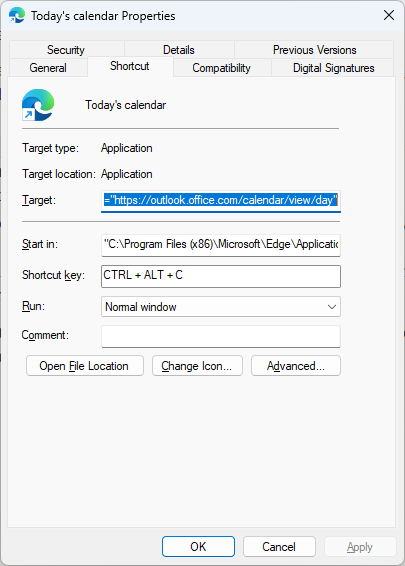
What your shortcut properties might look like
This will make Edge open the web version of Outlook in app mode (which removes things like the address bar, bookmarks bar, etc.) and display your calendar in 'day' view.
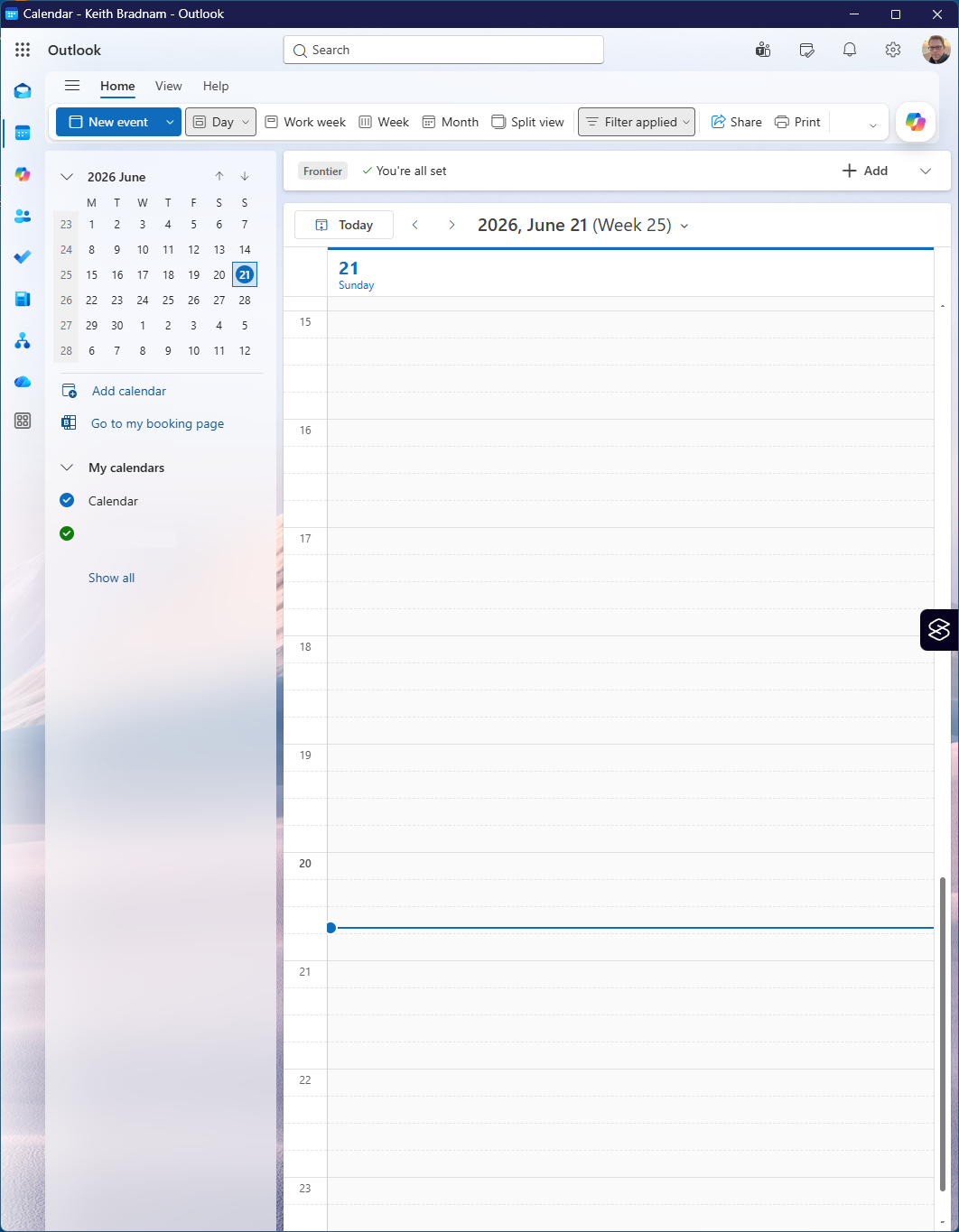
The final result!
If you prefer to view your calendar in a week or month mode, just use the appropriate URL in step 2:
outlook.office.com/calendar/view/week
outlook.office.com/calendar/view/workweek
outlook.office.com/calendar/view/month
Of course you are free to choose any keyboard shortcut for step 7, but first check it is not already being used by Windows.
Hope this is of use to anyone like myself who feels somewhat trapped in a Windows world at work. As a Mac/iPad user who has sometimes tried getting through a work day using nothing but an iPad Pro, I may return to similar issues in future blog posts!