
Gmail, FastMail, and Mavericks…can't you all just get along?
As a brief interlude to my never ending series of blog posts about migrating from Gmail to FastMail, I'll quickly note that:
a) Gmail has some problems when used as an account in the Mail app of Mac OS 10.9 (Mavericks)
b) FastMail also has some issues when being used with Mail on Mavericks (these would seem to be due to changes Apple made)
So on the one hand, the former news might encourage more people to move away from Gmail but the latter news item means that Apple's Mail app needs some fixes before being ready to work with FastMail under 10.9 (of course, web access to FastMail is unaffected). This is making me consider waiting a little while before upgrading to 10.9.
Update: 31st October
Turns out the 2nd item above was not FastMail's fault and was an issue with a particular user.
Update: 4th November
Marco Arment's piece on the wider issue of Gmail not adopting standard IMAP protocols is well worth a read.
Migrating from Gmail to FastMail: part 5
In this part, I will discuss the changes that I had to make to get FastMail working with my own personal domain.
When I was only using Gmail, I used a personal domain name that I had purchased from the excellent Hover domain name registrar[1]. For just $5 a year, Hover will forward email from a personal email address (using your own domain) to another email account. If I borrow from the fictional example in part 1 of this series, let’s assume I own the domain name mos-eisley-cantina.com and I was previously using Hover to forward mail to greedo@mos-eisley-cantina.com to my Gmail address (greedo_1977@gmail.com). How does this happen with FastMail?
One of the reasons I chose FastMail was that I knew that they supported personal domains[2]. You still get your own FastMail email address as well (and this becomes your account name) but I don't intend to ever use this as an email address.
On following FastMail’s guide to setting up your own domain name I was surprised to find that I had to alter my Hover name server settings for the mos-eisley-cantina.com domain name. I.e. I had to configure Hover to redirect all traffic heading towards mos-eisley-cantina.com to instead go to FastMail’s servers.

I thought I would just be configuring the mail settings at Hover.com rather than redirecting all traffic to FastMail. One of my concerns about this was that I was also using Hover to forward web traffic from mos-eisley-cantina.com to another domain that I own (er…let’s call it wretchedhiveofscumandvillainry.com). As soon as I changed the name server settings in Hover, this forwarding was broken.
I needn’t have worried. Turns out that FastMail provides a lot of options for custom DNS configuration. By visiting Settings->Advanced->Websites/Redirects I could configure my web traffic to be redirected just as before:

So I now have FastMail set up to use my custom domain, though when I set up mail clients such as Apple’s Mail app, I need to use my underlying FastMail email address[3] in the 'User Name' field. To make my custom domain name the default email account, you need to place it first in a comma separated list of email addresses in Apple Mail’s ‘Email address’ field:

- If you want to give me some Hover referral love, please use this link when signing up for a domain (I will get $5 in credit) ↩
- Though you have to sign up for the more expensive enhanced plan to have this feature. On the flip side, I’m no longer paying Hover $5 a year for the email forwarding. ↩
- FastMail provides many different options for your account email address with maybe 50 different domain name extensions (e.g. allmail.net, fastemail.us, myfastmail.com). I went for the default username@fastmail.fm format. ↩
Migrating from Gmail to FastMail: part 4
I’m falling behind on my (seemingly never-ending) series of posts about migrating from Gmail to FastMail. I still have lots that I want to write about, but for this post I’ll point you towards some resources I found helpful, and will briefly discuss FastMail’s IMAP migration tool.
Resources
FastMail provides a lot of really detailed and useful help online. They appreciate that many of you will want to work with FastMail on specific desktop and mobile clients and have created different help pages to address these scenarios. E.g. here is the advice on configuring Apple’s Mail app to work with FastMail folders. Their support team are also very quick to deal with emailed requests.
Here are some guides for migration of Gmail to FastMail:
- The official FastMail migration guide
- A migration guide by readwrite.com (March 2012)
- A short migration overview by Jackson Egan (June 2012)
- An excellent step-by-step guide from Max Masnick (July 2013)
FastMail’s IMAP migration tool
If you decide that you like the free trial of FastMail and want to move to using it 100%, then you will want to bring all of your Gmail (or other email) with you. FastMail has an IMAP migration tool which worked well for me. After logging in to FastMail, navigate to your Account page and select Migrate IMAP under the ‘Maintenance’ settings.

After entering your Gmail credentials, you just let this tool run in the background. It took about 4 hours to copy all of my ~15,000 emails [1]. The best part of this is that it sends you a detailed report when it finishes.
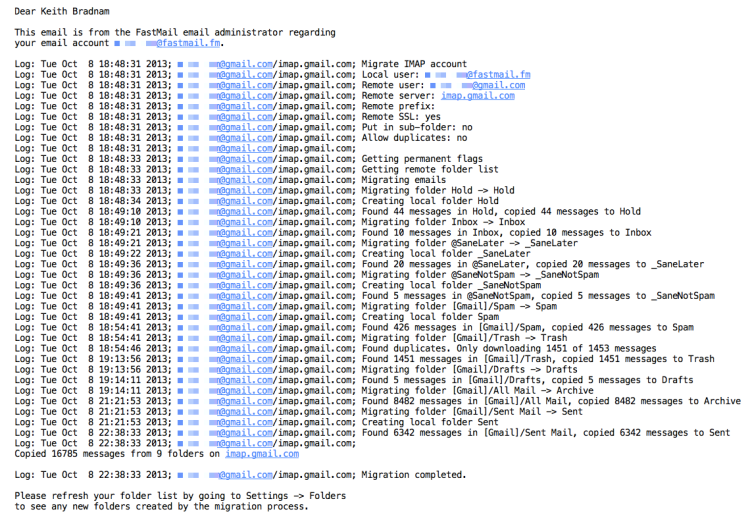
As I mentioned in an earlier post in this series, I was initially confused because my Gmail ‘All Mail’ folder seemed to shrink by several thousand emails. But this is because Gmail — which does many non-standard things with email —counts all sent emails as part of ‘All Mail’. FastMail resolves these into separate folders.
The only hitch in this process was due to my own stupidity. I use SaneBox to pre-filter my Gmail and I needed to tell SaneBox to work with FastMail instead. Foolishly, I did this while my mail was still being imported in the background. This may or may not have been the reason why I ended up with two sets of my SaneBox folders under FastMail. This was easy to resolve though [2].
In my next post, I’ll talk about how I migrated my personal domain settings over to FastMail.
-
It leaves all the original emails in Gmail, so there is no real risk of using this tool. ↩
-
SaneBox gives folders a prefix to make sure that they appear at the top of your list of folders. On Gmail it uses the ‘@’ symbol, but it turns out that different providers sort email folders differently. On FastMail, these folders use a ‘+’ sign (e.g. +SaneLater). During my email migration from Gmail, I also ended up with underscores being used. This gave me a +SaneLater and a _SaneLater folder. I simply moved the contents of _SaneLater into +SaneLater, deleted the former and everything was okay from that point. But really, don’t migrate SaneBox to FastMail until you have finished the Gmail->FastMail migration! ↩
What's in a name? Better vocabularies = better bioinformatics?
About 7:00 this morning I was somewhat relieved because my scheduled lab talk had been postponed (my boss was not around). But we were still having the lab meeting anyway.
About 8:00 this morning, I stumbled across this blog post by @biomickwatson on twitter. I really enjoyed the post and thought I would mention in in the lab meeting. Suddently though that prompted me to think about some other topics relating to Mick's blog post.
Before I knew it, I had made about 30 slides and ended up speaking for most of the lab meeting. I thought I'd add some notes and post the talk on SlideShare.
I get very frustrated by people who rely heavily on GO term analysis, without having a good understanding of what Gene Ontology terms are, or how they get assigned to database objects. There are too many published anayses which see an enrichment of a particular GO term as some reliable indicator that there is a difference in datasets X & Y. Do they ever check to see how these GO terms were assigned? No.
A grammatical analysis of Russian email spam
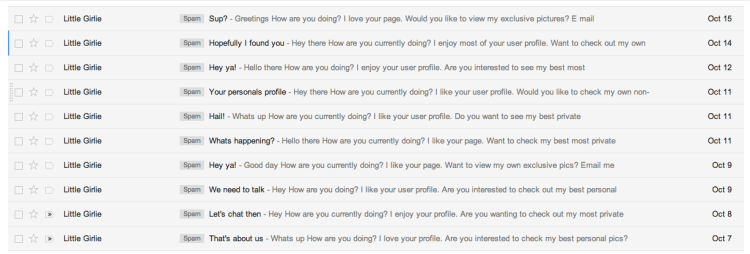
As part of my recent migration from Gmail to FastMail, I’ve been going through my Gmail Spam folder to check for any non-spam emails that were mistakenly filtered away. In doing so I noticed the following set of emails:
Here is an example of what one of these emails looks like:
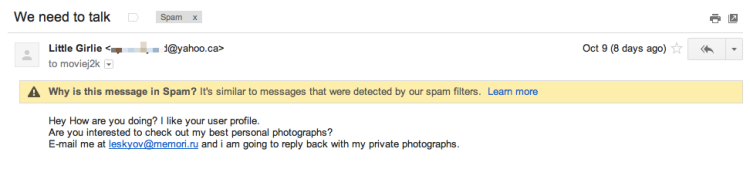
These emails are all slightly different, but follow a very similar format:
- All but one comes from — what I imagine to be real — Yahoo! accounts, that have probably been hacked.
- They all ask me to reply to a variety of Russian-based email addresses.
- They all use a series of similar phrases to try to engage with me
It is the last point that amuses me. The ‘little girlie’ who sent these emails uses the following variations to tempt me to reply to her:
“I love your page”
“I enjoy your user profile”
“I like your user profile”
“I like your page”
“I enjoy your profile”
“I love your profile”
And it almost worked. I was just about ready to reply — and hand over my credit card information for good measure — when I noticed this email:
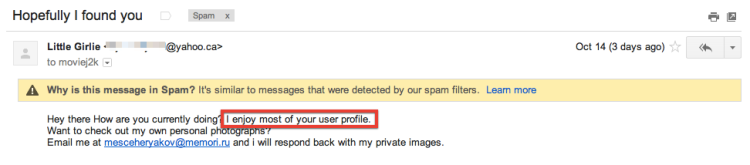
“Most”?!? You only enjoyed most of my user profile? If you are trying to tempt me (and scam me in the process), you’d better work on your flattery skills.
Migrating from Gmail to FastMail: part 3
I promise that I will get around to explaining the gory details of my Gmail to FastMail migration (and also how I’m finding FastMail as a service), but one final post before then. This time I want to talk about ‘preparation’.
If you are thinking of taking FastMail for a test drive, you can of course do this as a 60 day free trial (no credit card needed as well[1]). If you do this, then you don’t need to do much preparation other than set Gmail to forward your email (and keep a copy in the inbox or Archive folder):

Something else to bear in mind is that Gmail applies spam filtering rules before email gets forwarded. I’ve had issues where Gmail routinely flags some emails as spam (even though I’ve set up filters to tell it not to[2]). This is where I’ve found the SaneNotSpam tool by SaneBox to be really useful.
Michael Crusoe gave me a useful tip on twitter about this. Simply make a filtering rule in Gmail to forward all spam email. I did something slightly different and made a rule to not move any email to the Spam folder[3].

If you set up forwarding like this then you can continue using Gmail as before, but everything will also end up in FastMail. To be able to send from your Gmail address within FastMail, you’ll need to set up a Gmail personality. FastMail also allows aliases, but these differ somewhat from personalities[4].
Go on a Gmail diet
My final preparation tip — for those who are considering a permanent migration to FastMail — would be to slim down your Gmail archive. The much-touted advantage of never needing to delete emails when using Gmail is great…except for when you want to switch providers.
Although FastMail has a decent IMAP migration tool, it can take many hours to migrate thousands of emails (and I’m assuming that most Gmail users have thousands, if not tens of thousands, of emails). When I first started thinking about leaving Gmail (over a year ago now), I realized that I should probably start slimming down my Gmail archive[5].
It wasn’t until I completed the migration to FastMail that I realized that Gmail’s Archive folder also contains all of your sent mail. Initially I thought that the FastMail migration tool had made an error because I was missing about 6,000 emails. Turns out these were all of my sent messages, which FastMail — like other email providers — only keeps in the Sent messages folder.
Coming next
In part 4 I will explain a bit more about how the actual migration went for me, and what other things I needed to do in order to use my custom domain with FastMail.
-
I wish more services would let you try them without having to hand over credit card details ↩
-
In particular, emails from Amazon often end up in my Gmail spam folder. ↩
-
Though this is only catching spam email that is directly addressed to me. I’m still seeing some spam email where I’m presumably bcc recipient. But I can live with this. ↩
-
I now have a personality in FastMail for each account that I want to be able to send email from. ↩
-
Over the course of the last year, I’ve shed about 3,000 emails from my archive. This might seem like a lot, but my starting point was about 18,000 emails so I’m not sure how much time this saved me during the actual migration. ↩